

Phone Not Charging? What to Check Before Replacing the Charging Port
A damaged cable, lint in the port, a liquid or moisture warning, or a phone that stops at 80% on purpose. What to check at home before visiting the repair lab, and what Apple and Samsung say not to do.
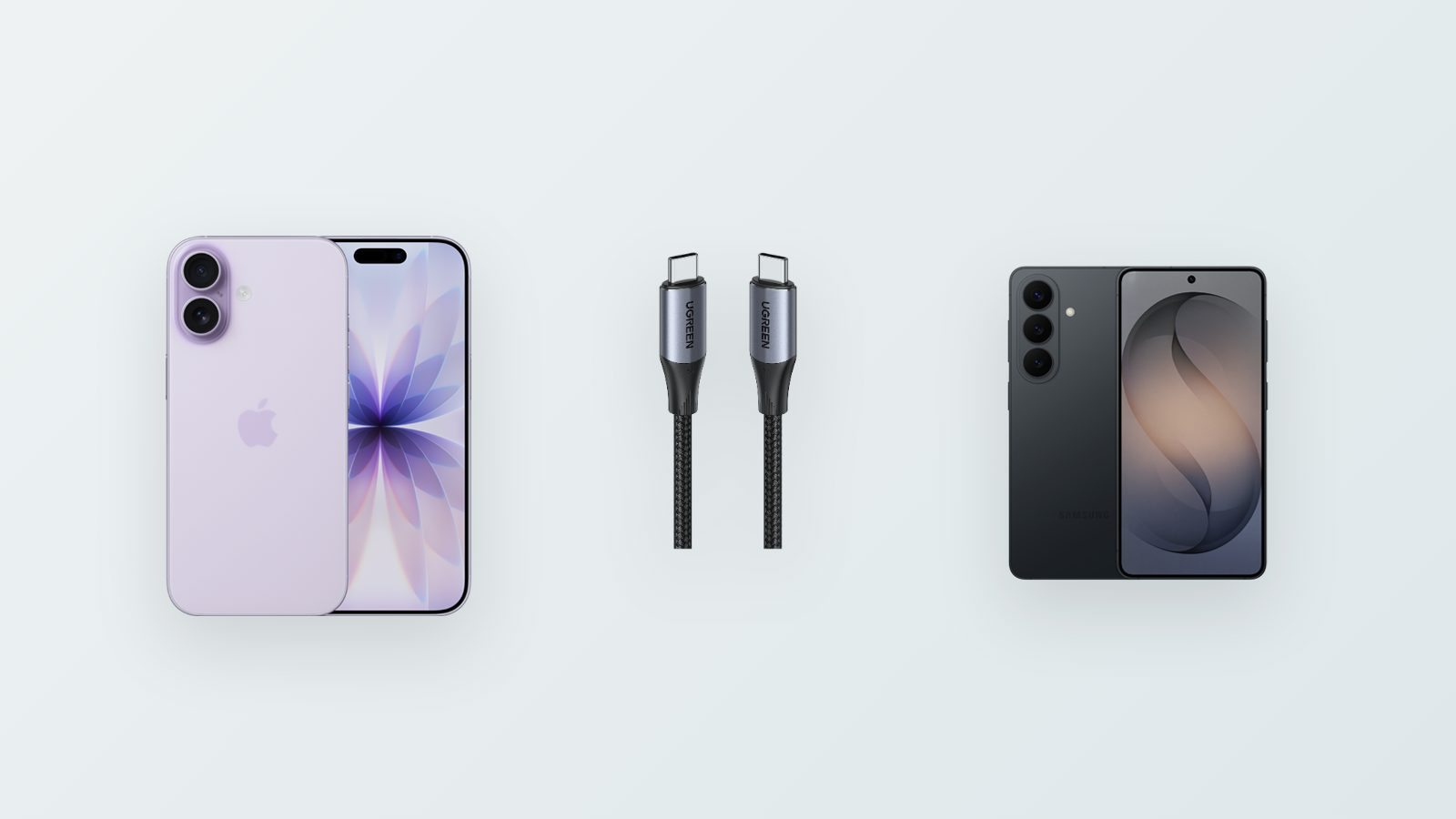
When a phone won't charge, most people think first of the port or the battery. In practice, the problem is often the cable, dirt that has packed into the port, or a protection the phone turns on by itself. A few simple checks can save you a repair.
Phone not charging: start with the cable and the charger
Apple recommends checking the cable and the power adapter first, and not using them if they show any damage. Then plug directly into a wall outlet, with no splitter or adapter in between, and try another outlet if needed. If you have another cable that works with a different device, that's the fastest test: if the phone charges with it, the problem isn't the phone.
Dirt in the charging port
Pocket lint and dust slowly pack into the bottom of the port until the cable no longer goes in all the way. A familiar sign is a cable that feels loose, or charging that only works at a certain angle. Apple recommends cleaning the port and plugging the cable back in firmly. It's best to turn the phone off and use a non-metal tool, such as a wooden toothpick or a soft brush. A pin or needle can damage the contacts.
A liquid or moisture warning appears for the port
On an iPhone, the message is "Liquid Detected in Connector." According to Apple, you unplug the cable, gently tap the phone with the connector facing down, and leave it in a dry place with airflow. Try charging again after at least 30 minutes. Full drying can take up to 24 hours. Apple asks that you not dry it with a heat source or compressed air, not insert a cotton swab into the port, and not put the phone in a bag of rice. A wireless charger keeps working, once the back of the phone is dry.
On a Samsung, the message is "Moisture detected" in the port. Unplug the charger, shake gently, and wait for the water to evaporate. This usually takes a few hours. Samsung asks that you not insert any object into the port.
The phone stops at 80%
This isn't a fault. On an iPhone, Optimized Battery Charging learns your habits and finishes the last 20 percent close to when you'll need the phone. From the iPhone 15 on, you can also set a charge limit. If the battery is too warm, Apple says the software may pause charging above 80% until the phone cools down.
On a Samsung, the battery settings include a Battery protection option. If you choose the Maximum mode, charging stops at 80%. On models with an older version of One UI, the option is to limit it to 85%. If the battery itself is draining fast, we wrote a separate guide. And if charging is slow and never stops, it's worth checking how many watts the phone actually gets.
When it's a job for the repair lab
According to Apple, if the phone won't turn on, plug it in for half an hour, force restart it, and wait another half hour. If it still doesn't charge, it needs to be inspected. The same goes if the port wobbles or looks damaged, or if the liquid warning doesn't go away even after a day of drying.
You can open a service request with the repair lab and describe what you've already checked.
- Phone not charging
- Charging port
- Liquid detected in connector
- Charging port replacement